
More than one server
Fregata Mobile can hold as many servers as you like: your own, a holiday home, a relative’s house you look after. You look at one at a time, and alerts come from all of them.
Add a server
Section titled “Add a server”- In Settings, tap Add another server.
- Fill in its At home and Away addresses and its Administrator account, as for the first. See Connect your server.
- Give it a Name, such as Cabin, so the app can tell your servers apart in alerts and menus.
- Back in Settings, open Server Notification Setup to set up its alerts. Each server needs this once.
The new server becomes the one you’re looking at.
Switch between servers
Section titled “Switch between servers”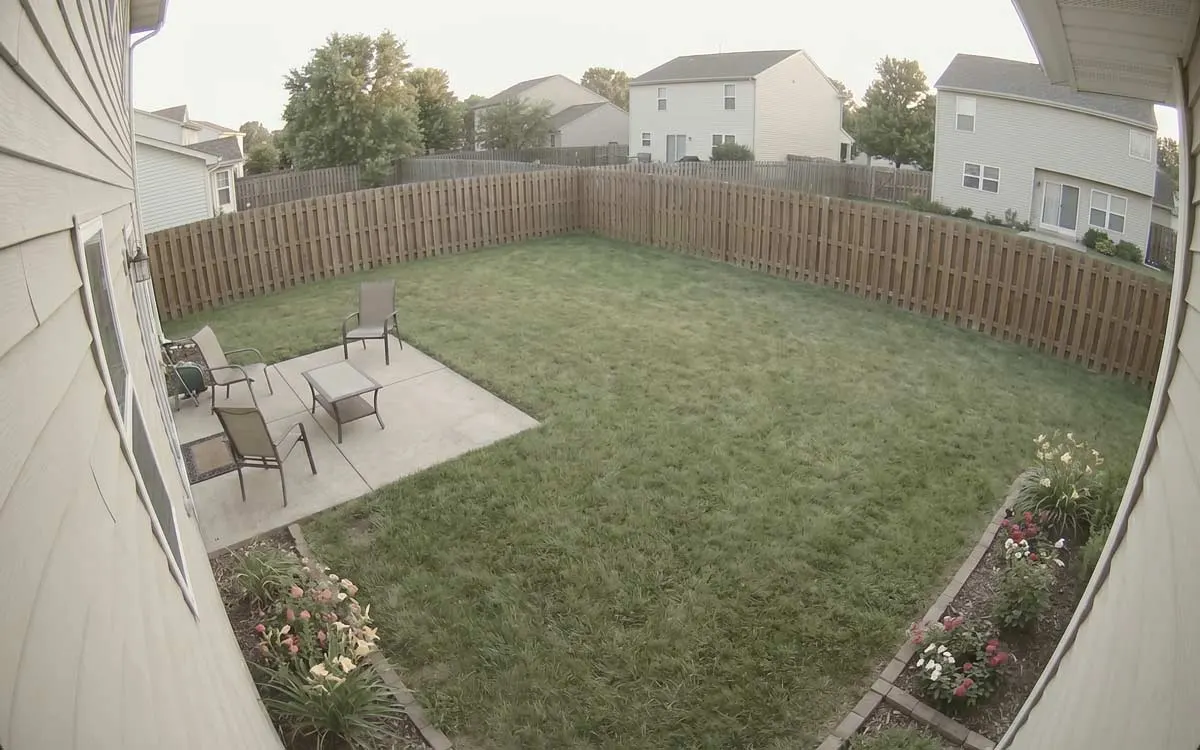
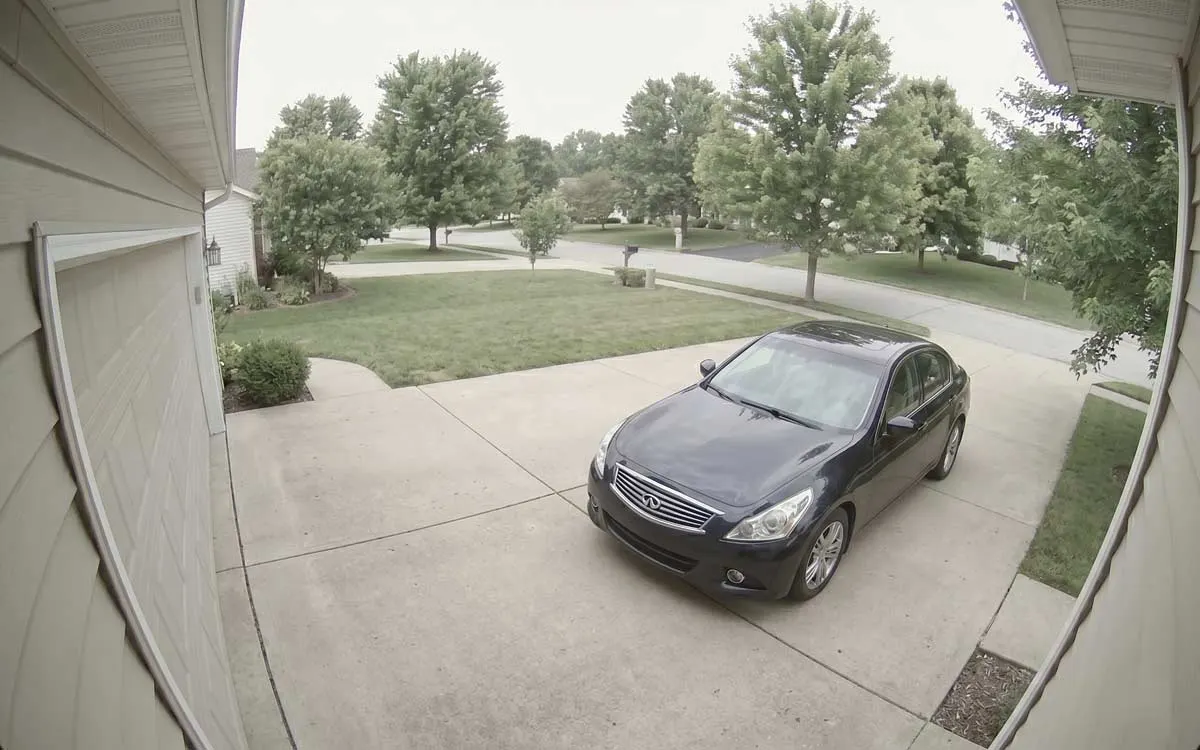
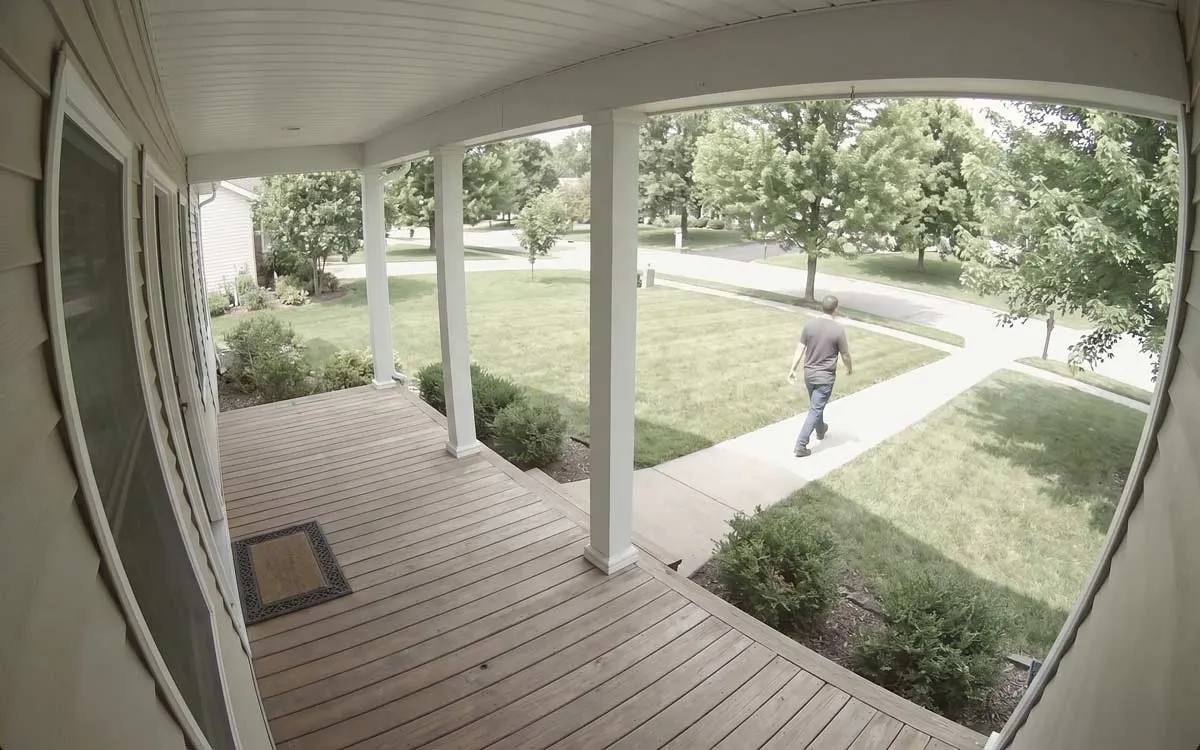
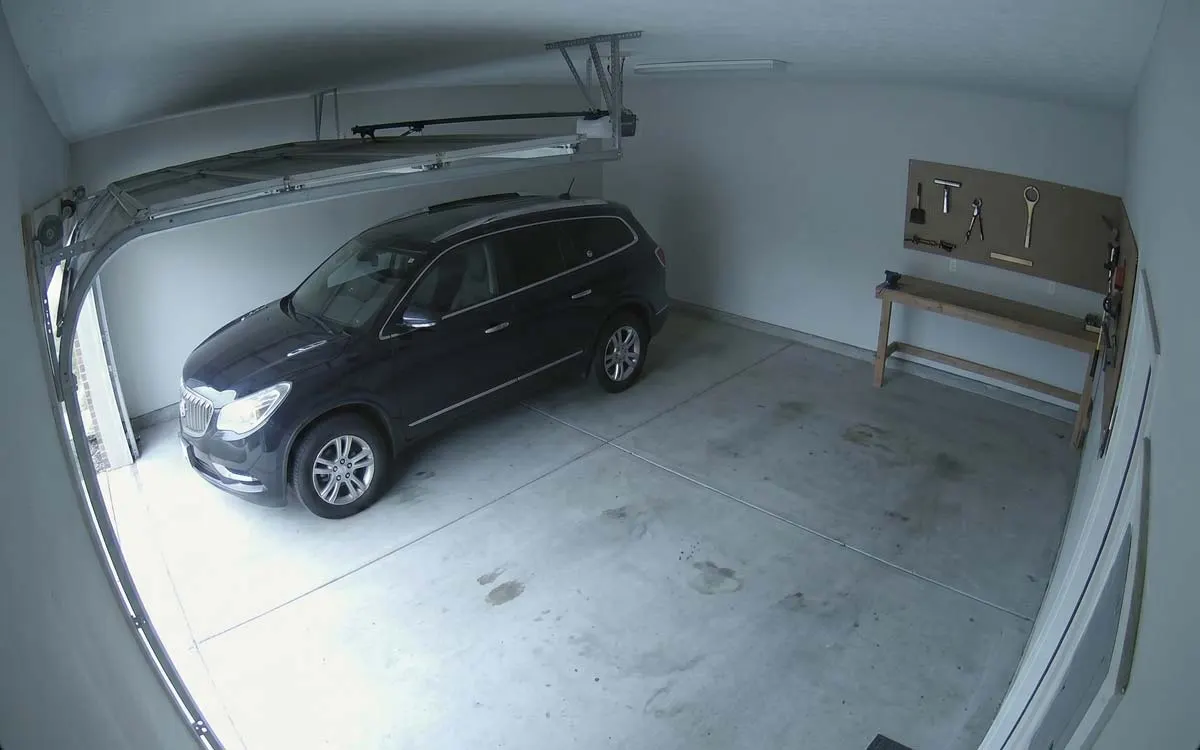
With more than one server, a server button appears at the top left of every tab. Tap it to switch. Cameras, Review, Explore and Settings all follow it: the Server section of Settings becomes the server’s name, and everything in it is about that server.
Alerts from several servers
Section titled “Alerts from several servers”Every server you’ve set alerts up for sends them, whichever one you’re looking at, and iOS
stacks each server’s alerts together in Notification Center. To have each alert say which server
it came from, add the server’s name to your alert wording with
{{server_name}}.
If you open an alert’s clip from a server you’re not looking at, the app says so: switch to that server and open it again.
Notification filters cover every server at once: each filter has its settings for each server, and Off for a whole server holds back everything from it.
iCloud
Section titled “iCloud”With iCloud Sync on, your list of servers, their names, addresses, usernames and passwords reach your other devices. Each device still sets up its own alerts.
Remove a server
Section titled “Remove a server”In Settings, switch to the server, open Connection, and tap Remove, then confirm. This iPhone forgets the server’s address, sign-in and certificate, and stops receiving its alerts. Nothing on the server itself changes, and nothing it recorded is deleted. Remove only appears while you have more than one server.