
How alerts work
An alert is a notification from your server that a camera saw something worth telling you about: by default a person or a car, as Frigate’s own review settings decide. Fregata Mobile turns it into a notification with the picture, a short video, and words you can choose.
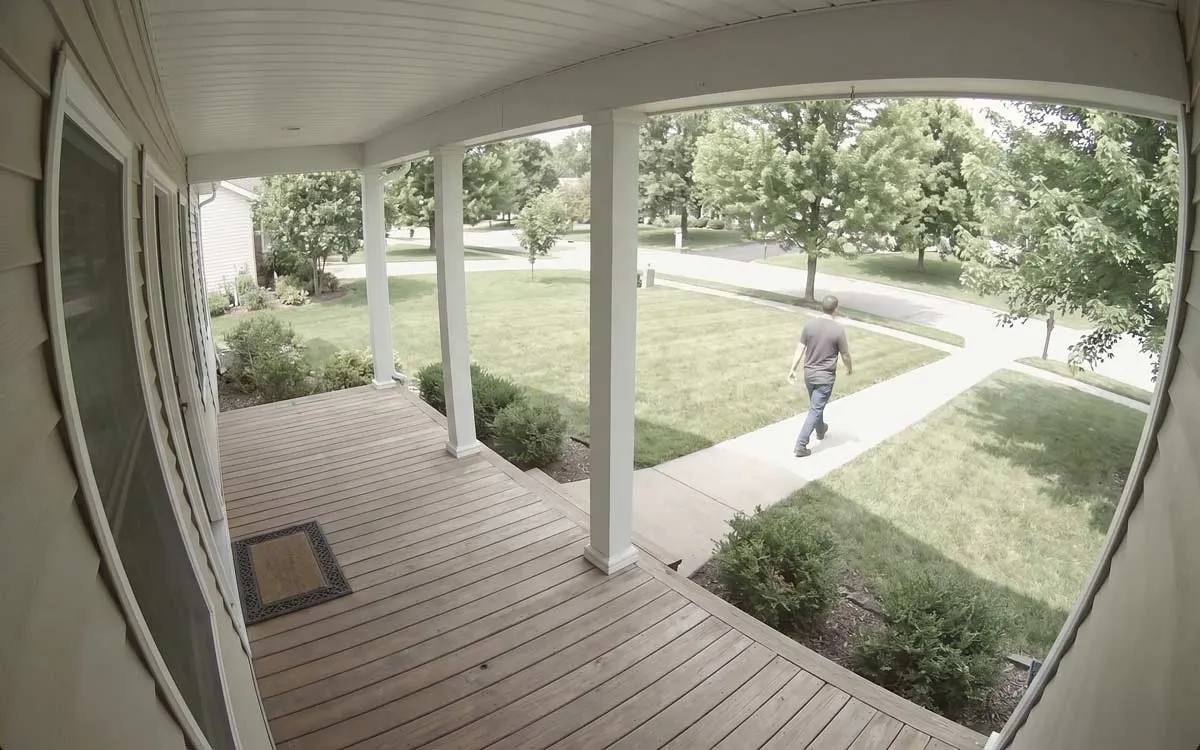
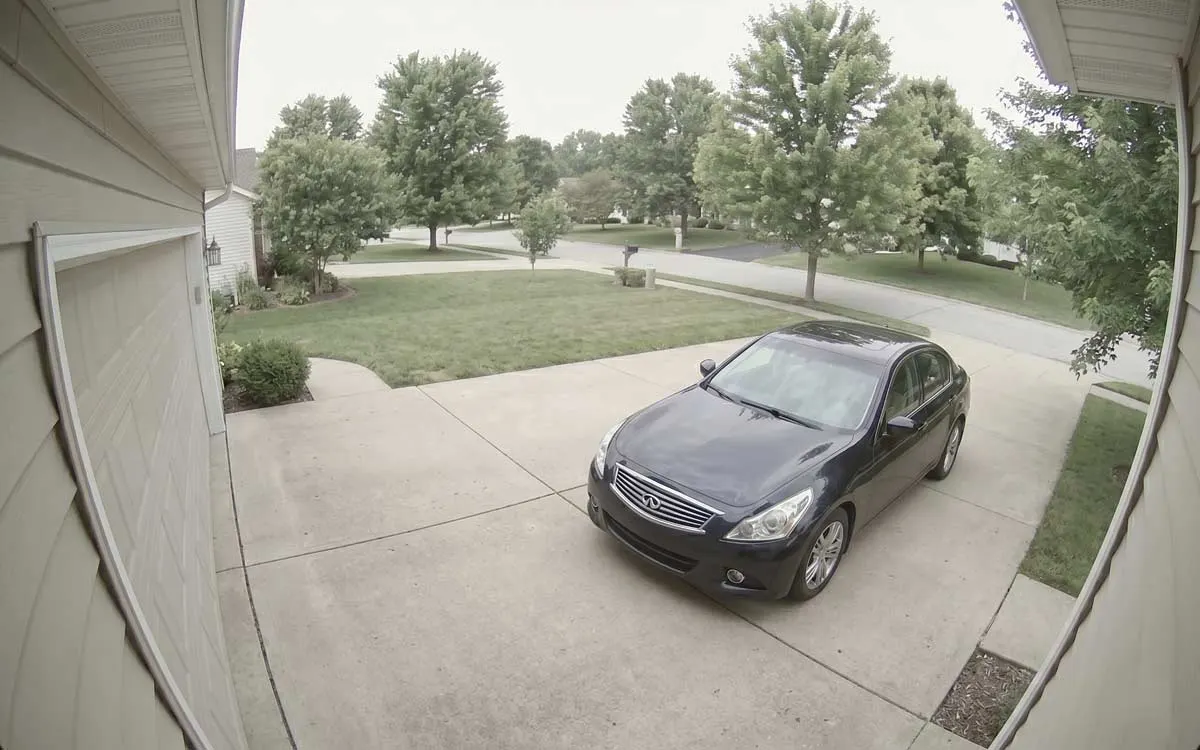
What’s in an alert
Section titled “What’s in an alert”- The title: the camera, as Front Porch Alert.
- What was seen, and where: Person in Front Path Zone. A recognised face or plate replaces the word it stands for, so Alice in Front Path Zone.
- A description, when there is one: your server’s GenAI description, or one written on this iPhone by Apple Intelligence.
- The picture the camera took, beside the words, and larger when you open the alert.
- Time Sensitive, when Break through Focus is on.
All of the wording can be changed: see Write your own alert wording. Objects you’ve hidden in Labels are left out of it.
What happens after it arrives
Section titled “What happens after it arrives”An alert keeps improving for a little while after it first appears, without making another sound:
- The alert arrives, at once, with the picture if it’s ready. With Alert first, then add the picture on, it doesn’t wait for a slow picture: the words come first, and the picture follows a moment later.
- The description is added, once your server’s GenAI or this iPhone has written one.
- The video replaces the picture about 25 seconds later, with Upgrade to video on. The wait is because Frigate writes recordings in 10-second pieces, and a clip asked for any sooner comes back silently too short.
If you dismiss the alert before the video arrives, it doesn’t come back. Tap a delivered alert to open the camera’s recording at that moment.
Long-press an alert
Section titled “Long-press an alert”
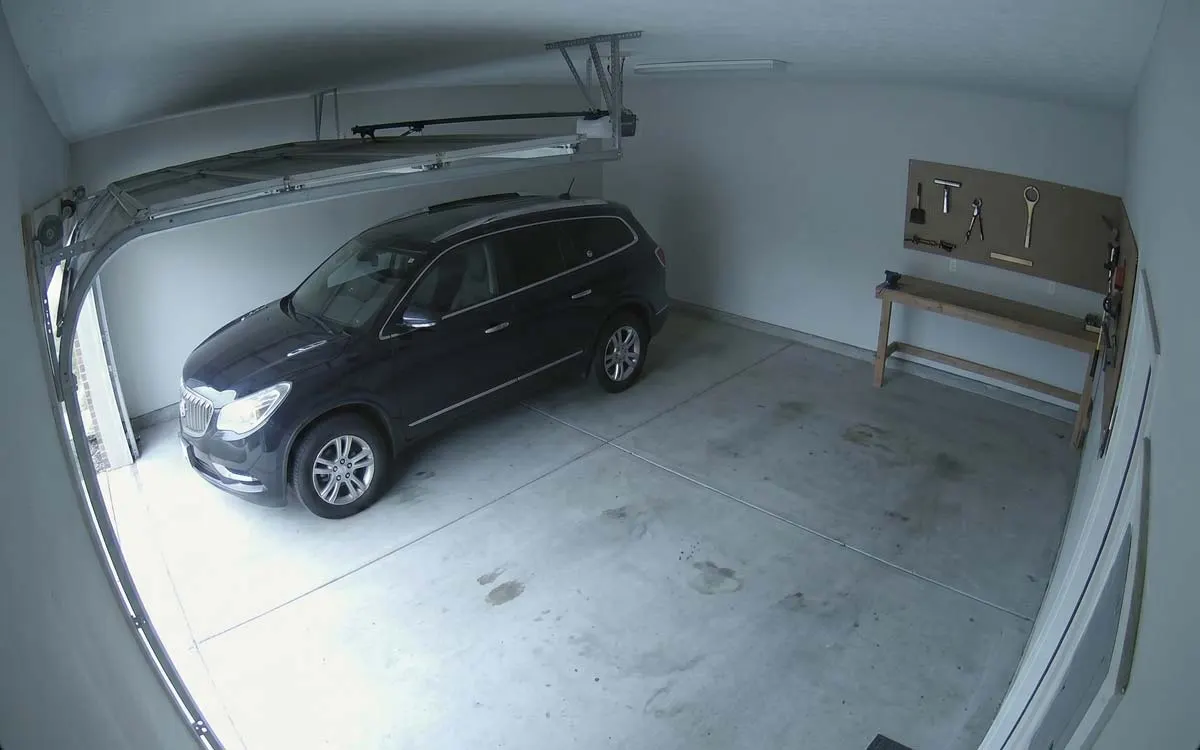
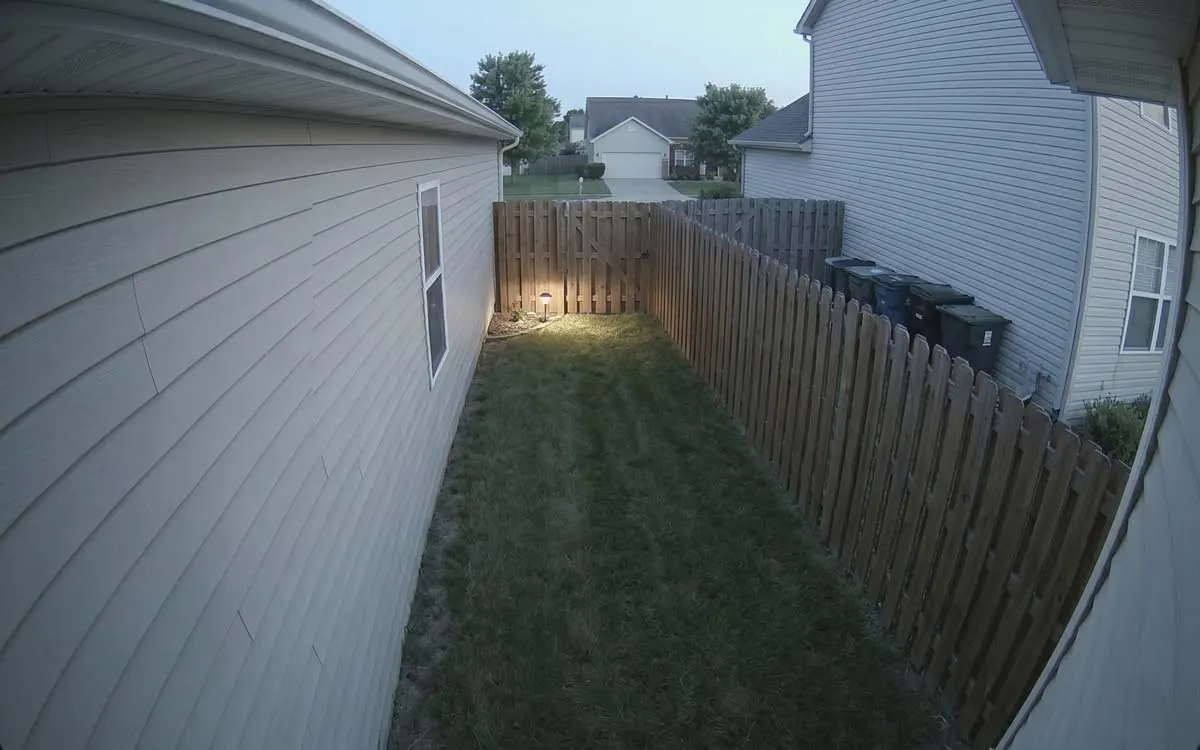
A person in a grey T-shirt walks down the front path toward the street.
Press and hold an alert to see it larger, play its video, and use its actions:
- Mute This Camera for an Hour snoozes that camera on this iPhone for an hour.
- Never Notify for This… opens a short list of what the alert contained, such as Person and Car. Choose the ones you don’t want to hear about from this camera, and tap Stop These. It changes your notification filter in force, so you can undo it there.
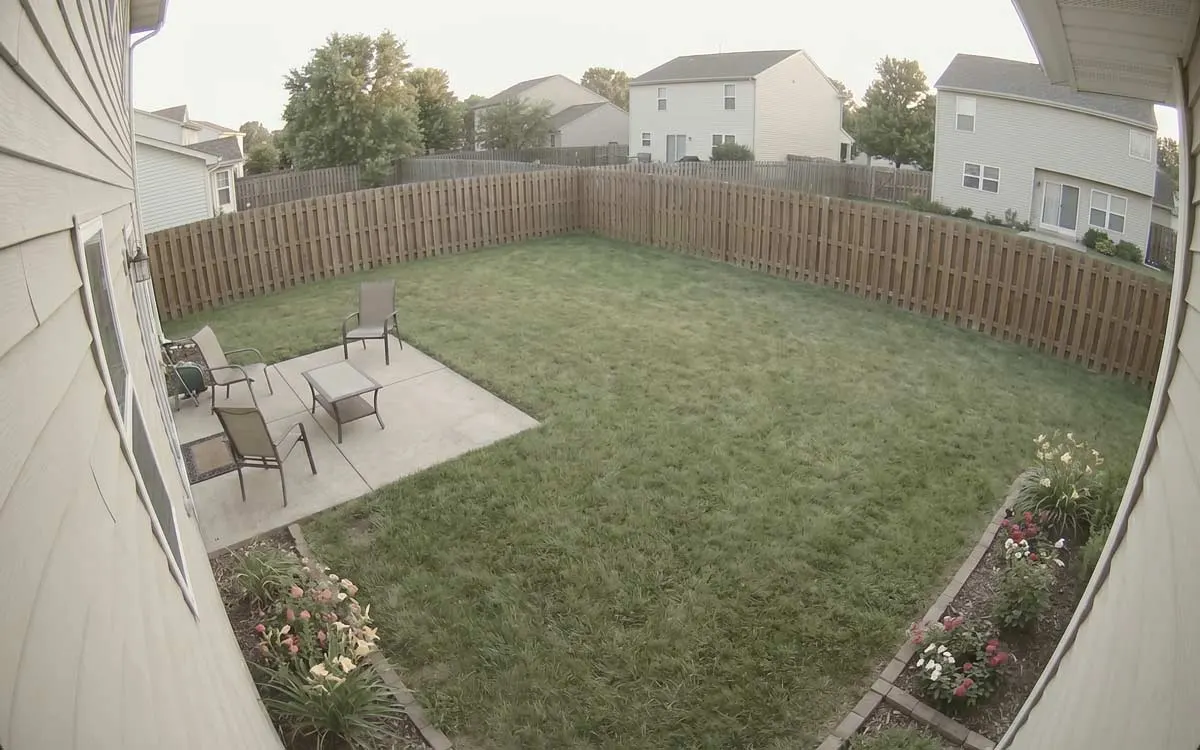
An alert that has anything else in it still arrives: with cars turned off, a car and a person together still alert, because of the person.
Alerts from the same event
Section titled “Alerts from the same event”Frigate updates an alert while the event is still going on: when the review ends, or when a GenAI description is ready. Fregata Mobile applies those to the alert you already have, silently, rather than sending you a second one. One event, one alert.
When your iPhone was offline
Section titled “When your iPhone was offline”Alerts are counted. If your iPhone was off or out of signal and an alert never reached it, the next alert or the next time you open the app notices the gap. A notification says Missed alerts: There were alerts while you were offline, and the app shows a banner that opens your alerts in Review. It doesn’t say how many.
An alert that arrives a long while after it happened says so, under the words: Delivered late. It happened at 2:14 PM, 3 hours ago.
When your server can’t be reached
Section titled “When your server can’t be reached”Alerts don’t need your iPhone to reach your server: they come through Apple’s push service. The picture, the video and your own wording do, because they come from your server. So away from home without an Away address, an alert still arrives, in Frigate’s own words and without a picture.
Grouping
Section titled “Grouping”iOS stacks each server’s alerts together in Notification Center. To see each alert separately instead, change Notification Grouping for Fregata Mobile in the iOS Settings app, under Notifications.
Not getting alerts?
Section titled “Not getting alerts?”Start with Settings › Server Notification Setup, which checks every step between your server and this iPhone. Then see Alerts don’t arrive.