Fregata Mobile is a free, native app for both Frigate and Fregata NVRs: live view in a tap, a timeline you can scrub like a photo roll, and encrypted notifications that Apple’s servers can never read.
Off stops this camera entirely — no stream, no detection, no recording.
Object detection
Off stops finding people, cars and animals. Recording continues.
Recording
Off stops writing footage. Nothing missed while it is off can be recovered.
Snapshots
Off stops saving the still that accompanies each event.
These last until the server restarts.
Cameras
Review
Explore
Settings
Live
Front Porch
Time Sensitive
Person · Front Porchnow
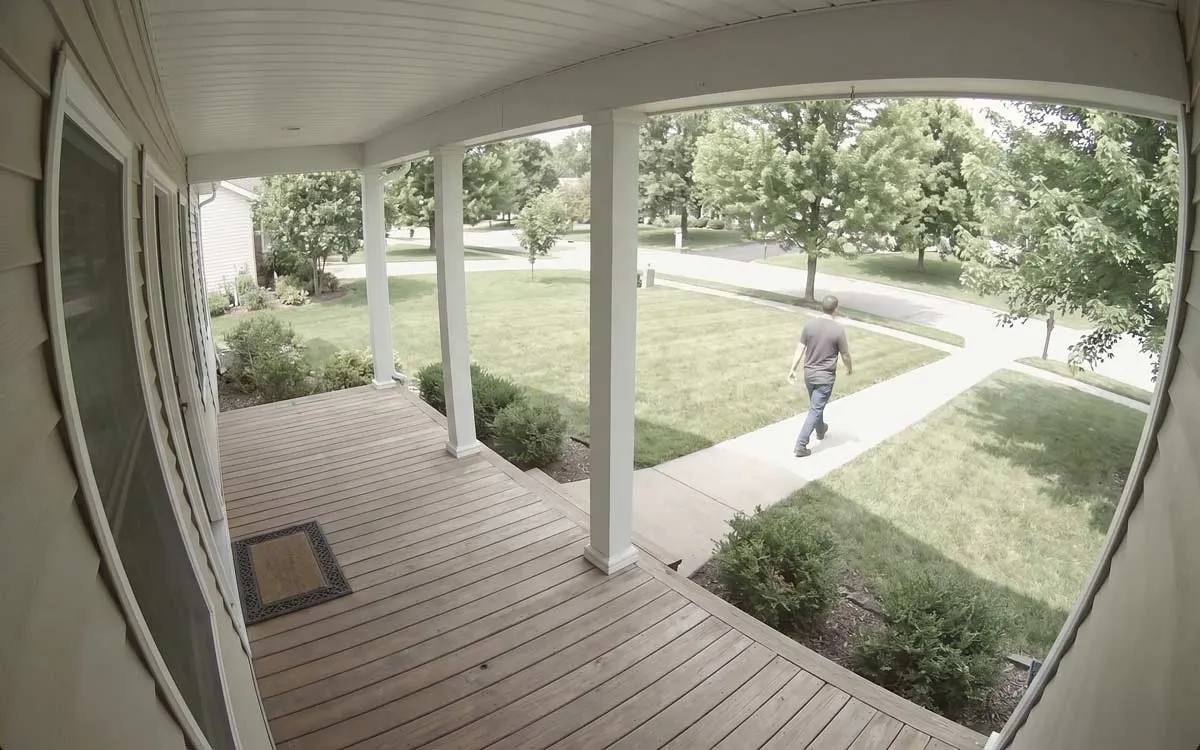
A person walks along the front path toward the street.
Car · Driveway12m ago
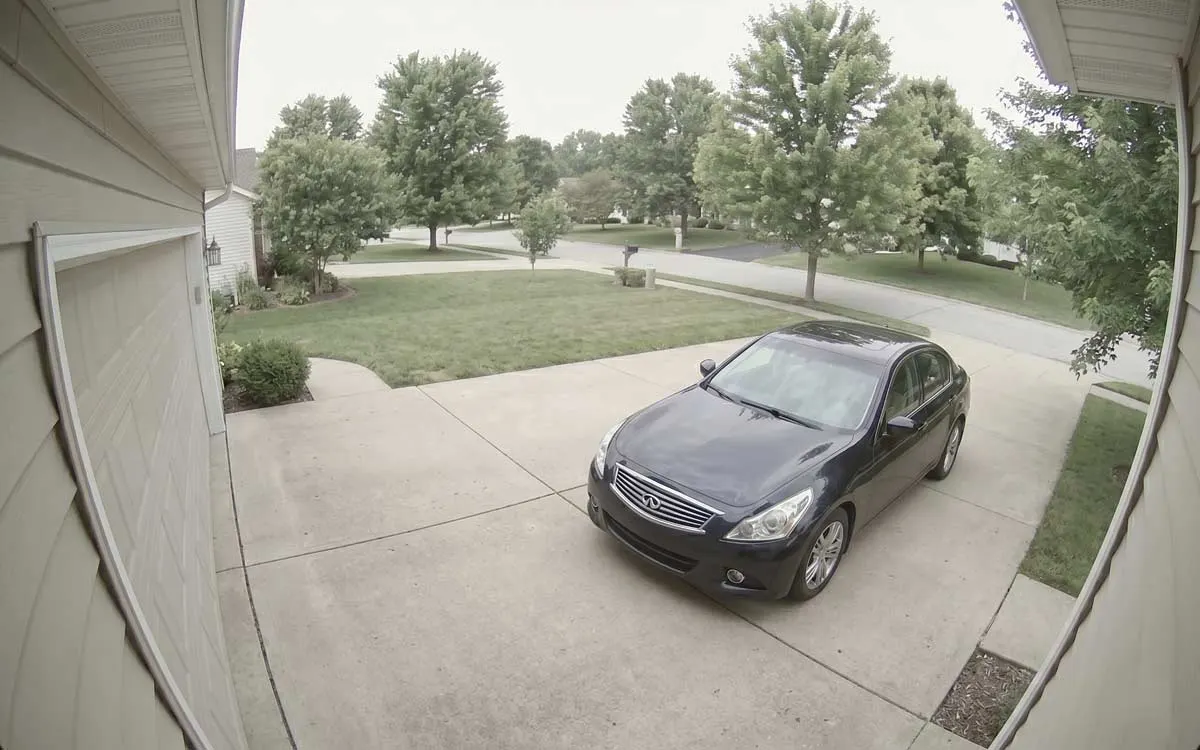
A dark sedan is parked on the driveway.
Encrypted notifications
At a glance
01
Free. Actually free.
No subscription, no ads, nothing locked away. We run the notification relay at our own cost.
02
Straight to your NVR
The app talks to your server directly, at home or away. Your video never passes through us.
03
Alerts Apple can’t read
Real push notifications with no Home Assistant or extra server to run, encrypted so Apple’s servers can never read them.
04
Native, not a web view
Written in Swift for iOS 26: Live Activities, widgets, Control Center, Siri and Shortcuts, and hardware video decoding.
Notifications
Know what happened before you unlock.
Alerts come from your own NVR with the picture attached, then quietly upgrade to a clip. No Home Assistant, no MQTT, no second buzz.
Wednesday 1 October
9:41
Time Sensitive
Person · Front Porchnow
A person walks along the front path toward the street.
Car · Driveway12m ago
A dark sedan is parked on the driveway.
FREGATA MOBILEnow
Clip · 0:06
Person · Front Porch
A person walks along the front path toward the street.
Described on iPhone
The picture, then the clip
Every alert lands with its snapshot. A little later, Upgrade to video, on by default, swaps in a playable clip of what happened.
Described on your iPhoneiOS 27
Turn on Describe alert pictures and Apple Intelligence writes a one‑line caption on the device: nothing is sent anywhere, and there’s no AI server to run. Frigate’s GenAI summary takes over when your server writes one.
Your words, your sound
Build the text from the camera, objects, zones and recognised names, like “Alice · Front Porch”. Pick your own alert tone.
Loud only when it matters
Time Sensitive alerts break through Focus. Set each camera or object to Silent, Normal or Time Sensitive, or let a Focus filter choose which may wake you.
One event, one buzz
Each review alerts once. Updates arrive silently, so a busy driveway doesn’t turn your phone into a pager.
Set up for you
One tap turns on Frigate’s notifications, restarts it with your OK and sends a test to prove it. Prefer to do it yourself? It shows the exact YAML.
Encrypted before being sent to Apple, so Apple’s servers can never read what’s in an alert.
For the cameras you choose, an alert that’s still going on stays on the Lock Screen and in the Dynamic Island as a Live Activity, with its picture and a running clock. Widgets and Control Center keep the rest a glance away.
Live while it happens
The camera, what it saw and how long it’s been going, on the Lock Screen and in the Dynamic Island. Watch Live opens the camera, Snooze 1 Hour quiets it, and once it ends, View Clip opens the recording.
Six widgets
Latest Alert, Cameras, Camera, Alerts to Review, Notifications and Activity, on the Home Screen, and four of them on the Lock Screen too.
Control Center and the Action button
Switch the notification filter, or snooze every alert or the cameras you choose, without opening the app.
On your wrist too
The same Live Activity shows in the Apple Watch’s Smart Stack.
0:42
Wed 1 Oct3 alerts to review
9:41
3
Front Porch
Person
2 min. ago
Front Porch
Person
Front Path
0:42
Live
Watch Live
Snooze 1 Hour
Away
On
Snooze All Alerts
1 hour
4
alerts to review
In the last 24 hours
2 min. ago
Filter
Away
Alerts on
Snooze 1 hr
Notification filters
Only the alerts you want.
Filters like Home, Away and Sleep decide which cameras, objects and zones may alert you, and how loudly. An alert a filter holds back never reaches your iPhone: no buzz, no banner, nothing to clear.
Driveway
Away
Alerts from this camera
Level
Time Sensitive
Time Sensitive breaks through Focus. Normal sounds but waits for a Focus to end. Silent goes straight to Notification Center.
Objects
Person
Alert
Car
Don’t alert
Dog
Silent
Zones
Driveway
Street
An alert is held back only when every zone it touched is off.
Cameras
Review
Explore
Settings
Filter
Home
Away
Sleep
Snooze
Off
Snooze 1 hr
Held back
The last 24 hours
Car · Driveway · 2:14 PM
Held back by: Driveway: not for Car
Dog · Backyard · 11:48 AM
Held back by: Backyard: quiet zones
Person · Garage · 9:05 AM
Held back by: Garage snoozed
Home, Away, Sleep
Start from a suggestion or name your own, each with its own icon. One is on at a time on each device, and your filters sync through iCloud.
Down to the object and zone
For each camera: which objects may alert, which zones count, and how loud it is. Cars off on the driveway still lets a person through.
Quiet hours
Overnight, alerts arrive silently in Notification Center. A camera or object you’ve set louder still sounds.
Snooze anything
One camera, a server or every alert, for up to 24 hours: from the alert itself, the camera, a widget or Control Center. It ends by itself.
See what was held back
Held back lists the last day’s alerts your filters kept from you, and the setting that stopped each one.
Switches itself
Shortcuts can change the filter for you: “When I leave home, set Fregata to Away”.
Recordings
Scrub a whole day like a photo roll.
Drag through hours of footage and every frame follows your finger. The strip shows where the action is, snaps to it with a haptic tick, and spans five minutes to a full day with a tap.
Frames under your finger
Preview frames load as you drag. On cellular it fetches only what’s around the playhead, and nothing ahead in Low Data Mode.
Magnetic events
Alerts and detections pull the playhead in, with a haptic tick when it lands.
The story so far
When Frigate’s GenAI has summarised a review, the summary rides along as you watch.
Event to event
Skip to the previous or next review; the list beside the video follows playback.
Clip it, send it
Trim a range and save it to Photos or Files, or send it in Messages. Your NVR does the cutting.
Front Porch
Main 1080P
5 m
1 h
6 h
24 h
LIVE
3:42 PM
3:57 PM
4:12:18 PM
4:27 PM
4:42 PM
Footage
Motion
Alerts
Detections
1×
ON THIS TIMELINE
Alerts
Detections
All
Person
4:36:12 PM · 9.8 s
Person
4:12:18 PM · 12.4 s
Person
3:58:40 PM · 7.1 s
Person
3:47:05 PM · 6.1 s
A person leaves the porch and walks down the path to the street.
Cameras
Review
Explore
Settings
A person leaves the porch and walks down the path to the street.
Front Porch · Today
AlertsDetectionsMotion
13:52:40
13:00
13:15
13:30
13:45
14:00
Live view
Live in a tap. Gentle on your battery.
Your camera grid refreshes still pictures; only the camera you open streams. Leave it, and the connection closes rather than hides.
Low‑latency live
Streams over MSE through go2rtc and decodes in hardware on your iPhone.
Stills in the grid
The camera grid refreshes pictures, not streams. Only the camera you open goes live.
Closed, not hidden
Leave a camera and its connection closes. Nothing streams in the background.
Driveway
live
Main 1080P
1.5×
The right quality
On Fregata NVR, live view opens at a lighter quality away from home, any other step is a tap away, and it says what you’re watching: 720p · 1.5 Mbps.
Sound and talk
Camera audio plays, including AAC, Opus and G.711 cameras, and you can talk back through cameras Frigate has two‑way talk set up for.
PTZ and switches
Pan, tilt, zoom and presets on PTZ cameras, and the camera’s own switches, each saying exactly what turning it off stops.
And the rest
Everything you’d expect. A few things you wouldn’t.
Everything from Frigate’s web interface you reach for on a phone, plus the things only a native app can do.
Search the way you think
Type “black car” and Frigate’s semantic search finds it. Find Similar pulls up every look‑alike, and recognised faces and plates show by name.
black car3 results
Driveway · 17:42
Driveway · 08:13
Garage · 18:05
Find SimilarCar · plate AB12 CDE
Review, sorted
Alerts and detections, filtered by any mix of cameras and objects. Opening one marks it reviewed on your NVR.
Automations
On iOS 27, an alert can start a shortcut: choose Fregata Mobile in the Notification trigger, and a camera, object or zone. Shortcuts also switch filters, snooze and fetch snapshots, and Siri opens a camera.
Alert: “Front Door”Porch Light on
Home and away, automatically
Give it both addresses. On every network change it tries them together and keeps whichever answers.
Behind any front door
Cloudflare Access, Tailscale, reverse proxies: add the headers or client certificate your proxy asks for, and self‑signed certificates are pinned.
AI descriptions on your iPhoneiOS 27
On iOS 27, Apple Intelligence describes an alert’s picture, and the events you open in Explore, on the device. Nothing is sent anywhere, and there’s no AI server to run or pay for. Rewrite the Description prompt and the caption length, then test it on your latest alert.
Instructions
Say who is there and what they’re doing, in one sentence. Mention any parcel.
Request
An alert from {{camera}}: {{subjects}}
Test with the latest alertCaption length · 160 characters
A courier sets a parcel down by the front door.
More than one NVR
Every server sends its alerts; switch between them with a tap.
HouseCabinMum & Dad’s
Set up once, everywhere
Servers sync through iCloud, passwords through iCloud Keychain, which is end‑to‑end encrypted. Or keep it to one device.
Diagnostics in plain words
When alerts don’t arrive, it works out which usual cause it is and how to fix it.
Push registration confirmed
Alerts on for 5 of 6 cameras
Porch isn’t restreamed through go2rtc
iPad
On iPad, everything sits side by side.
Review opens in three columns: the list, the timeline and the details. Cameras, Explore and Settings keep what you tapped beside what you were looking at.
List
Timeline
Review details
Review
Alerts
Detections
All
All cameras
TODAY
0:10
Person
Front Porch
4:36:12 PM
0:12
Person
Front Porch
4:12:18 PM
0:07
Person
Front Porch
3:58:40 PM
0:21
Car
Driveway
3:52:40 PM
0:06
Person
Front Porch
3:47:05 PM
0:15
Person
Backyard
2:30:11 PM
0:33
Car
Garage
1:05:52 PM
0:09
Person
Side Gate
11:18:27 AM
0:18
Car
Driveway
9:02:44 AM
0:07
Person
Front Porch
8:15:30 AM
Front Porch
Main 1080P
5 m
1 h
6 h
24 h
LIVE
3:42 PM
3:57 PM
4:12:18 PM
4:27 PM
4:42 PM
Footage
Motion
Alerts
Detections
1×
ON THIS TIMELINE
Alerts
Detections
All
Person
4:36:12 PM · 9.8 s
Person
4:12:18 PM · 12.4 s
Person
3:58:40 PM · 7.1 s
Person
3:47:05 PM · 6.1 s
Person 94%
Person
4:12:18 PM · 12.4 s
Person leaves by the front path
A person leaves the porch and walks down the path to the street.
Person
94%
0:00–0:12 · → Walkway
Cameras
Review
Explore
Settings
Apple Watch
Who’s at the door? Glance and know.
On Apple Watch, Fregata Mobile does three things well: it tells you what happened, shows you what’s happening now, and hands everything else to your iPhone.
Live
Front Porch
Zoom
4:36:15 PM
Person
Front Porch · 4:36:12 PM · 9.8 s
Live
Newer
Older
Front Porch
Look now
Pick a camera and its picture keeps refreshing while your wrist is up. Turn the Crown to zoom; swipe to the next camera.
Honest pictures
Every frame says how old it is, “Live” or “8 s ago”, so a stale picture never passes for a live one.
Alerts on your wrist
Who and where in words first, then the picture. Double Tap opens that camera live.
Complications
Your unreviewed count and last alert, on the watch face and in the Smart Stack.
Nothing to set up
Servers come from your iPhone. There’s no sign‑in on the watch.
Privacy
Your footage stays yours.
No Fregata account, no analytics, no trackers, no ads. Private by design. Live view, recordings and snapshots go from your NVR to your devices, and nowhere else.
Encrypted notifications that Apple’s servers can never read.
On your iPhone
Time Sensitive
Person · Front Porchnow
A person walks along the front path toward the street.
How people watch Frigate on an iPhone today. We’ve tried to be fair, and corrections are welcome on GitHub.
Fregata Mobile compared with other ways to watch Frigate on an iPhone
Fregata MobileFree and native, for Frigate & Fregata
Frigate in SafariFrigate’s web app on your Home Screen
Home AssistantCompanion app with the Frigate integration
Other Frigate appsThird-party Frigate viewers on the App Store
Cloud camerasRing, Nest, Arlo
Price
Free
Free
Free
Free tiers, paid upgrades, camera limits
$6–$25 a month
Native iPhone & iPad app
Yes
No
Yes
Yes
Yes
Adaptive transcoding for weak cellular connections*Requires Fregata NVR
Yes
Yes
No
No
No
Alerts with no Home Assistant or extra server
Yes
Yes
No
Varies
Yes
A picture in the alert
Yes
Text only on iOS
Yes
Yes
Often paid
Encrypted notificationsApple’s servers can never read them
Yes
Yes
No
No
No
Scrub recordings with previews
Yes
Yes
With a community card
Often paid
Subscription
Search your footage
Yes
Yes
No
Some
Subscription
Choose alerts by object, zone and time of day
Yes
Per camera only
With automations
Varies
Often paid
Lock Screen widgets & Live Activities
Yes
No
With automations
Rarely
Widgets, some
AI descriptions on your iPhone, freeiOS 27 with Apple Intelligence
Yes
Needs your own AI server
Needs an AI model
Rarely
Paid, in the cloud
Siri & Shortcuts
Yes
No
Not camera‑specific
Rarely
Varies
Apple Watch
Yes
No
Not camera‑specific
Some, often paid
Rarely
Your video stays private. No cloud.
Yes
Yes
Yes
Mostly
No
Fregata MobileFree and native, for Frigate & Fregata
Price
Free
Native iPhone & iPad app
Yes
Adaptive transcoding for weak cellular connections*Requires Fregata NVR
Yes
Alerts with no Home Assistant or extra server
Yes
A picture in the alert
Yes
Encrypted notificationsApple’s servers can never read them
Yes
Scrub recordings with previews
Yes
Search your footage
Yes
Choose alerts by object, zone and time of day
Yes
Lock Screen widgets & Live Activities
Yes
AI descriptions on your iPhone, freeiOS 27 with Apple Intelligence
Yes
Siri & Shortcuts
Yes
Apple Watch
Yes
Your video stays private. No cloud.
Yes
Frigate in SafariFrigate’s web app on your Home Screen
Price
Free
Native iPhone & iPad app
No
Adaptive transcoding for weak cellular connections*Requires Fregata NVR
Yes
Alerts with no Home Assistant or extra server
Yes
A picture in the alert
Text only on iOS
Encrypted notificationsApple’s servers can never read them
Yes
Scrub recordings with previews
Yes
Search your footage
Yes
Choose alerts by object, zone and time of day
Per camera only
Lock Screen widgets & Live Activities
No
AI descriptions on your iPhone, freeiOS 27 with Apple Intelligence
Needs your own AI server
Siri & Shortcuts
No
Apple Watch
No
Your video stays private. No cloud.
Yes
Home AssistantCompanion app with the Frigate integration
Price
Free
Native iPhone & iPad app
Yes
Adaptive transcoding for weak cellular connections*Requires Fregata NVR
No
Alerts with no Home Assistant or extra server
No
A picture in the alert
Yes
Encrypted notificationsApple’s servers can never read them
No
Scrub recordings with previews
With a community card
Search your footage
No
Choose alerts by object, zone and time of day
With automations
Lock Screen widgets & Live Activities
With automations
AI descriptions on your iPhone, freeiOS 27 with Apple Intelligence
Needs an AI model
Siri & Shortcuts
Not camera‑specific
Apple Watch
Not camera‑specific
Your video stays private. No cloud.
Yes
Other Frigate appsThird-party Frigate viewers on the App Store
Price
Free tiers, paid upgrades, camera limits
Native iPhone & iPad app
Yes
Adaptive transcoding for weak cellular connections*Requires Fregata NVR
No
Alerts with no Home Assistant or extra server
Varies
A picture in the alert
Yes
Encrypted notificationsApple’s servers can never read them
No
Scrub recordings with previews
Often paid
Search your footage
Some
Choose alerts by object, zone and time of day
Varies
Lock Screen widgets & Live Activities
Rarely
AI descriptions on your iPhone, freeiOS 27 with Apple Intelligence
Rarely
Siri & Shortcuts
Rarely
Apple Watch
Some, often paid
Your video stays private. No cloud.
Mostly
Cloud camerasRing, Nest, Arlo
Price
$6–$25 a month
Native iPhone & iPad app
Yes
Adaptive transcoding for weak cellular connections*Requires Fregata NVR
No
Alerts with no Home Assistant or extra server
Yes
A picture in the alert
Often paid
Encrypted notificationsApple’s servers can never read them
No
Scrub recordings with previews
Subscription
Search your footage
Subscription
Choose alerts by object, zone and time of day
Often paid
Lock Screen widgets & Live Activities
Widgets, some
AI descriptions on your iPhone, freeiOS 27 with Apple Intelligence
Paid, in the cloud
Siri & Shortcuts
Varies
Apple Watch
Rarely
Your video stays private. No cloud.
No
Summarised from public documentation and App Store listings, September and October 2026. “Other Frigate apps” are the third-party Frigate viewers on the App Store, which differ from one another. Cloud prices are Ring Protect, Nest Aware and Arlo plans.
Get started
Up and running in three steps.
1
Install
Download it free from the App Store on your iPhone or iPad. The Apple Watch app comes with it.
Fregata MobileFree · iOS 26 or later
2
Add your server
Type its address and sign in. Set up on another device already? It’s waiting in iCloud.
Home192.168.1.20:8971
Awaynvr.example.com
3
Turn on alerts
Tap Set up automatically: the app configures Frigate, restarts it with your OK and sends a test.
Set up automatically
Test Notificationnow
This is a test notification from Frigate.
Needs iOS or iPadOS 26, watchOS 26 for the Apple Watch app, and Frigate 0.17 or later or any version of Fregata. Picture descriptions and starting a shortcut from an alert need iOS 27.
FAQ
Things people ask.
Something else? Ask on GitHub Discussions, where the people who build the app answer.
Yes. No subscription, no ads, nothing locked away. We run the notification relay ourselves and pay for it, because an app that makes Frigate great on an iPhone is the best promotion Fregata NVR could ask for.
Do I need Home Assistant or MQTT?
No. Alerts use Frigate’s own web push, delivered through our relay and encrypted so Apple’s servers can never read them. If you already run Home Assistant, it keeps working alongside. See How alerts work.
What do I need?
An iPhone or iPad on iOS or iPadOS 26, an Apple Watch on watchOS 26 for the watch app, and Frigate 0.17 or later, including 0.18, or any version of Fregata NVR. Picture descriptions need iOS 27 and an iPhone or iPad with Apple Intelligence, and starting a shortcut from an alert needs iOS 27. See Compatibility.
What’s the difference between Frigate and Fregata?
Frigate is the open‑source NVR. Fregata is our native macOS build of it for Apple silicon. Fregata Mobile works with both, with a few extras on Fregata. See Extras on Fregata NVR.
How is this different from Frigate’s web app?
Frigate’s web app is excellent, but on iOS its notifications are text only, and a web app can’t reach Siri, Shortcuts or your Apple Watch. Fregata Mobile adds pictures and clips to alerts, a native timeline, iPad layouts and a watch app.
Does my video pass through your servers?
Never. Live view, recordings, snapshots and the pictures in your alerts all come straight from your NVR. Only the notification itself passes through us, on its way to Apple. See Privacy and your data.
Can I watch when I’m away from home?
Yes, whenever your phone can reach your NVR: Tailscale or another VPN, Cloudflare Tunnel with Access, a reverse proxy or a forwarded port. The app switches between your home and away addresses by itself. See Away from home.
How do I get help?
Ask on GitHub Discussions, where the people who build the app answer, or email us from Settings › Help & Support. It also shows how to copy a diagnostics report to paste in, with your server’s addresses and username masked and your password never in it. See Getting help.
16 more questions
Can I choose which alerts reach me?
Yes, down to the object and the zone. Build named filters like Home, Away and Sleep: turn a camera off, mute particular objects or zones on it, add quiet hours, and set how loud each camera or object is, from Silent to Time Sensitive. An alert a filter holds back never reaches your iPhone, and Held back lists what was kept from you and why. One filter is on at a time, and Shortcuts can switch it, so “don’t alert me for people in the garage when I’m at home” is a Home filter plus an automation that turns it on when you arrive. You can also snooze one camera, one server or every alert for up to 24 hours, from the alert itself, the camera, a widget, Control Center or Shortcuts. See Notification filters and Snooze and mute.
Are there Frigate widgets and Live Activities for iPhone?
Yes. Fregata Mobile has six widgets: Latest Alert, Cameras, Camera, Alerts to Review, Notifications and Activity, four of which also fit the Lock Screen. For the cameras you choose in Settings › Live Activities, an alert that’s still going on shows as a Live Activity on the Lock Screen, in the Dynamic Island and in the Apple Watch’s Smart Stack, with its picture, a running clock, Watch Live and Snooze 1 Hour. Control Center controls switch the notification filter and snooze alerts. See Widgets and Control Center and Live Activities.
Can a Frigate alert run a shortcut, like turning on a light?
Yes, on iOS 27. In the Shortcuts app, add an automation with the Notification trigger, choose Fregata Mobile, and add a camera, object or zone name, such as “Front Door” or “Person”, so it runs only for those alerts. The shortcut can do anything Shortcuts can, like turning on a porch light in the Home app. See When an alert arrives.
Can it describe alerts with AI without a GenAI server?
Yes, on iOS 27 with Apple Intelligence. Turn on Describe alert pictures, and your iPhone writes a one‑line description of each alert’s picture itself. Nothing is sent anywhere, and there’s no Ollama, OpenAI or Gemini to set up. You can rewrite the Description prompt, set the caption’s length and test it on your latest alert. Like any AI, it can be wrong. When Frigate’s own GenAI describes the review, that description takes over. See AI descriptions.
Is Fregata Mobile in Spanish, French or German?
Yes. The app, its notifications, widgets and Live Activity, and the Apple Watch app are in English, Spanish, French and German, following your device’s language. Frigate’s object names appear as Frigate’s own web UI translates them.
Does it work behind a reverse proxy that requires a client certificate (mTLS)?
Yes. Import the .p12 or .pfx file under Advanced in the server’s Connection settings, and the app presents it whenever that server asks: for live view, recordings, the pictures in alerts and on Apple Watch. Each server can have its own. A certificate installed in iOS Settings with a profile isn’t used, because iOS keeps those for Safari and Apple’s own apps. See Client certificate.
Will it work on a slow cellular connection?
Yes. Scrubbing loads only the preview frames around your finger, and none ahead in Low Data Mode. On Fregata NVR, recordings step their quality down by themselves, and live view opens at a lighter quality away from home and shows what you’re watching, like 720p · 1.5 Mbps. See Extras on Fregata NVR.
Can I use more than one NVR?
Yes. Each server sends its own alerts, you switch between them with a tap, and they sync to your other devices through iCloud. See More than one server.
Does it work with Frigate+ and Frigate’s AI features?
Yes. Search your footage in plain words when Frigate’s semantic search is on, send false positives to Frigate+ from Explore, and read Frigate’s GenAI summaries with each review. See Explore and search.
Is this an official Frigate app?
No. Fregata Mobile is made by 3rd Bit Labs LLC. It works with Frigate, and isn’t affiliated with or endorsed by Frigate, Inc.
Can I check on or restart my Frigate server from my iPhone?
Yes. Settings › Server Status, named after your server if you’ve named it, shows what Frigate’s System page does: detection and AI enrichment speed over the last 20 minutes, every camera’s frame rate, CPU, GPU, memory and storage, and any problems Frigate would warn about. It has live logs, and an admin can restart Frigate. The app asks first, then follows the restart until every camera is streaming again. See Server status, logs and restart.
Can I control a PTZ camera from my iPhone?
Yes, when Frigate has ONVIF set up for it. Live view shows the PTZ controls Frigate’s web interface does: hold an arrow to pan and tilt, zoom and focus, go to a saved preset, or turn on tap to move and tap the picture to point the camera there. On Frigate 0.18, dragging a box zooms in on it. Any account can use them, and an administrator can turn autotracking on and off. See Move a PTZ camera.
Can I talk through my camera or doorbell from my iPhone?
Yes, on cameras Frigate has two‑way talk set up for: live view shows Talk wherever Frigate’s web interface shows its microphone button. It’s a conversation, with echo cancellation, so you hear the camera while you talk. Your voice goes to go2rtc’s WebRTC port, 8555, so it works at home, over a VPN or with that port forwarded; through a tunnel alone, such as Cloudflare Tunnel, you can watch but not talk, as in Frigate’s web interface. See Talk through a camera.
Does it work on Apple Watch?
Yes. Pick any camera to see it on your wrist, alerts come with a Live button, and complications show what’s waiting to be reviewed. Your servers come from your iPhone, so there’s nothing to sign in to on the watch. See Apple Watch.
Does it work on a Mac?
Yes, on a Mac with Apple silicon and macOS 26: the iPad app runs there, from the Mac App Store, with live view, recordings, Review and Explore. Alerts don’t come to a Mac, though. The notification relay sends them only to a device that can prove it’s running the real app, and Apple offers that proof on iPhone and iPad but not on a Mac, so your alerts go to your iPhone or iPad. See Compatibility.
Can I try new features before they reach the App Store?
Yes. Every new build of Fregata Mobile goes to a public beta on TestFlight, Apple’s app for testing apps, before it reaches the App Store. To join, open the beta’s invitation on your iPhone or iPad. The beta takes the App Store version’s place, and you can go back to the App Store version whenever you like. See Join the TestFlight beta.
Ready when you are
Put your NVR in your pocket.
Free for iPhone, iPad and Apple Watch, on the App Store now.
Fregata NVR is a native high-performance macOS port of Frigate built to unlock the raw power of Apple silicon. Object detection on the Neural Engine, AI Enrichments on the GPU, video decoding & encoding on the Media Engine and adaptive bitrate streaming that keeps Fregata Mobile smooth on weak cellular connections.


 Fregata MobileFree and native, for Frigate & Fregata