
Live Activities
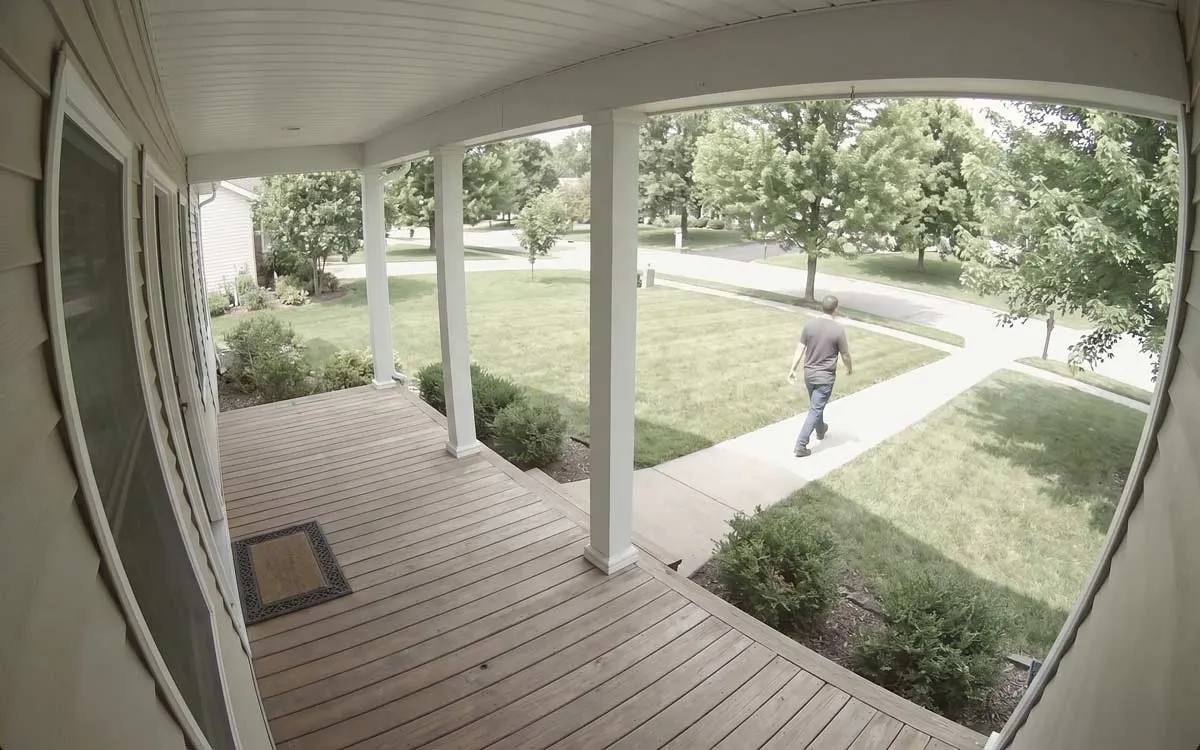
For the cameras you choose, an alert that’s still going on stays on the Lock Screen and in the Dynamic Island as a Live Activity: the camera, what it saw, its picture, and a clock running since it started. It’s for the cameras where you’d want to watch while it happens, such as a front door, not every camera on the street. This iPhone only
Turn them on
Section titled “Turn them on”- Open Settings › Live Activities.
- Leave Live Activities on, and under Cameras, turn on each camera whose alerts should start one.
- Tap Preview to see one, then lock your iPhone or go to the Home Screen: iOS doesn’t show a Live Activity while the app is open. The preview ends after 30 seconds.
Nothing starts until you choose at least one camera. Alerts from the others arrive as ordinary alerts, as before.
What it shows
Section titled “What it shows”- The camera, what it saw and where, with the alert’s picture.
- A running clock, from the moment the alert started, marked Live while it’s going on.
- Watch Live opens the camera’s live view.
- Snooze 1 Hour snoozes that camera on this iPhone.
When the alert ends, the clock stops, the activity says Ended, and View Clip opens the recording of what happened. It goes a minute later. If a newer alert from a chosen camera starts while one is showing, the activity moves on to the newer one.
In the Dynamic Island it shows as an icon and the clock; touch and hold it for the full view. On an Apple Watch, the same activity appears in the Smart Stack.
If none appear
Section titled “If none appear”- Settings › Live Activities says Live Activities are off for Fregata Mobile in Settings › Apps › Fregata Mobile: turn them on there, in the iOS Settings app.
- No camera chosen yet: choose at least one camera.
- Alerts have to be set up first: a Live Activity is sealed with the same key as your alerts.