
The Cameras tab
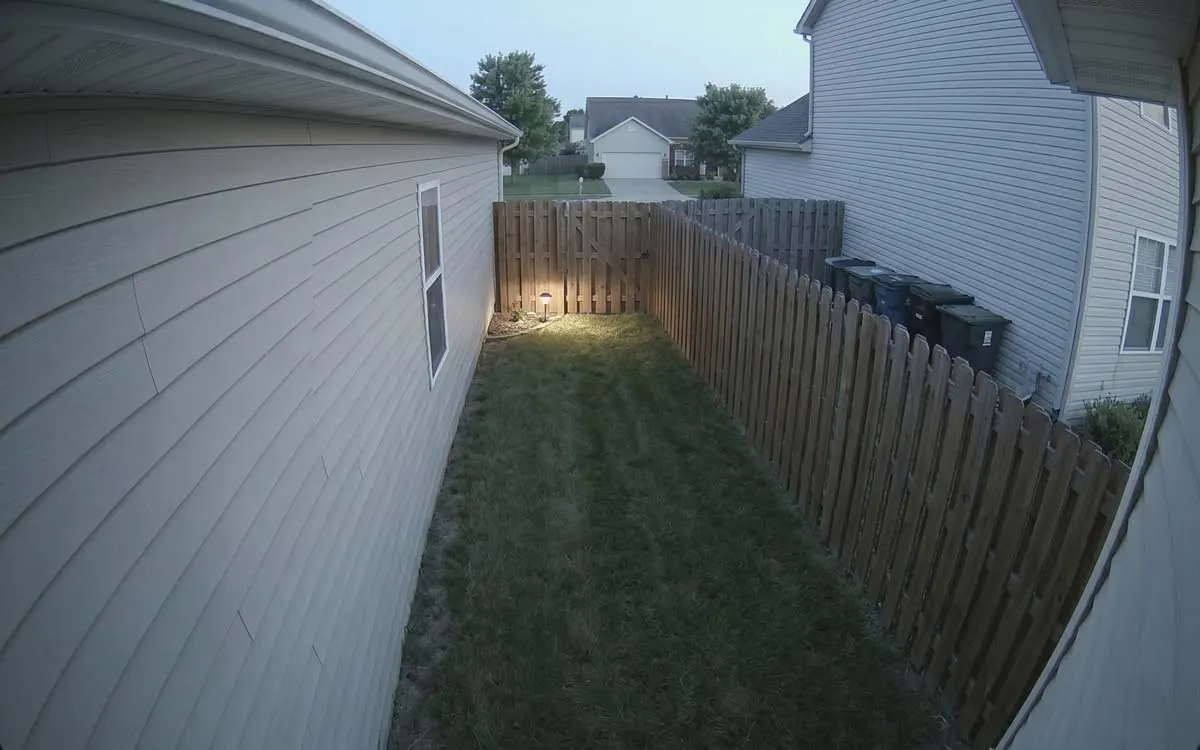
The first tab shows every camera on your server, with a recent picture of each and what it last saw. Tap a camera to watch it live.
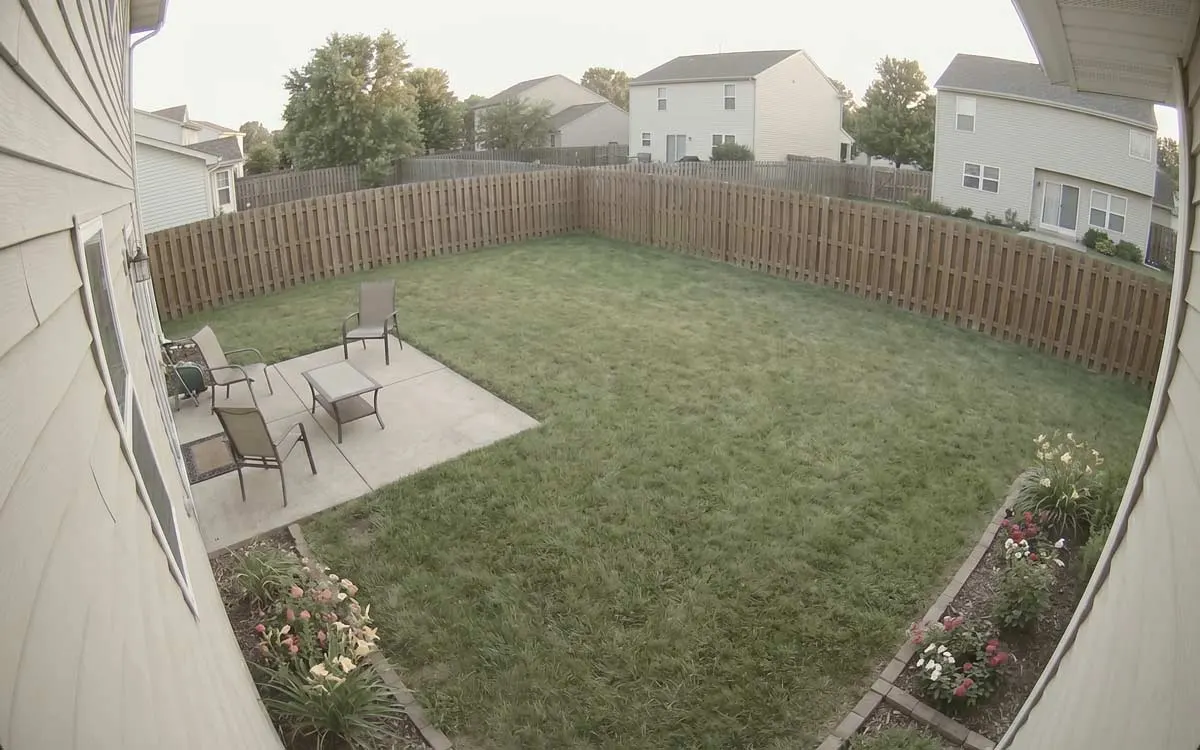
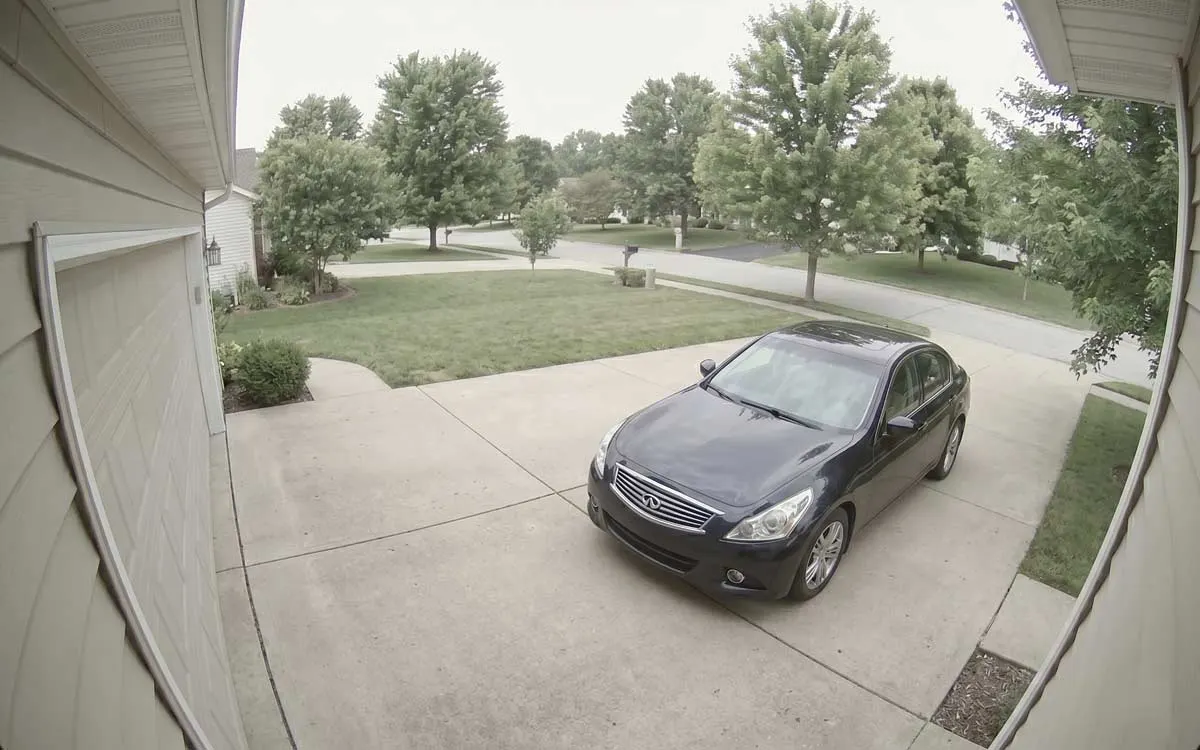
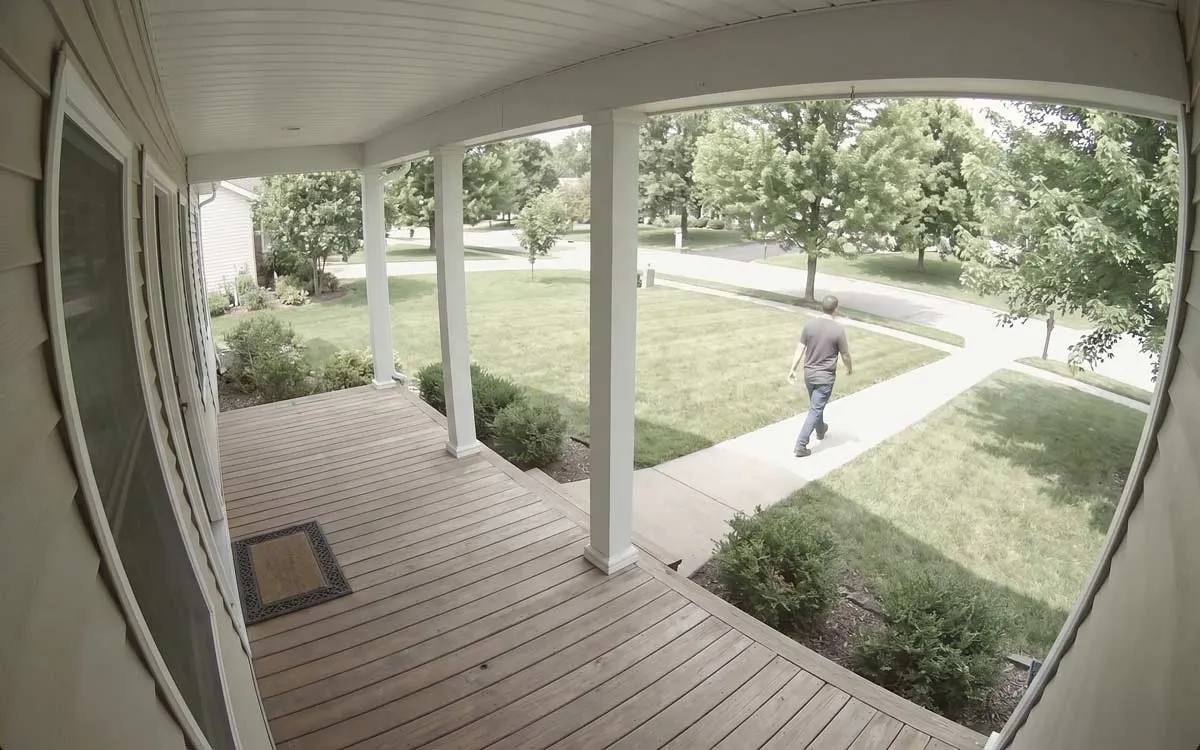
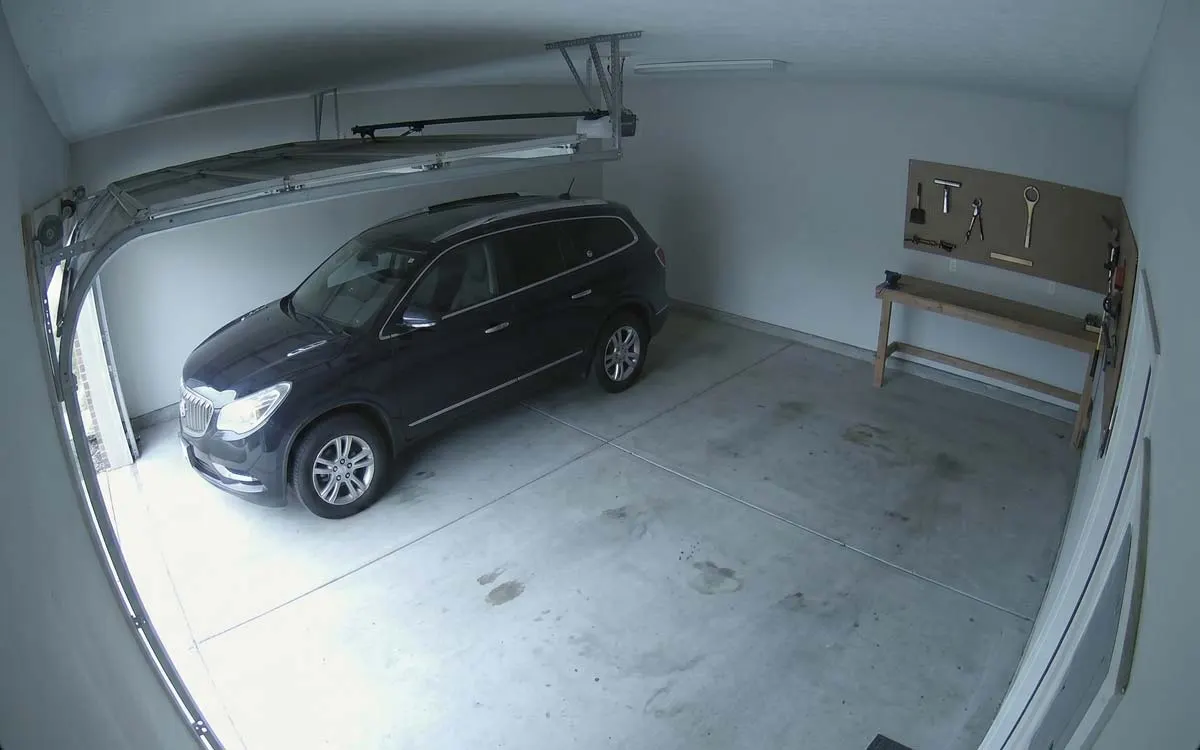
- Cameras ⌄: the title is a menu. It chooses a camera group, and the notification filter in force.
- Layout: grid, list or column.
- A camera: a recent picture, the camera’s name, and what it saw last and when. Tap it to watch live.
- Recent Alerts: the newest alerts from every camera shown, newest first. Tap one to open its recording.
What a tile tells you
Section titled “What a tile tells you”The picture on each tile is a still, not video, so a screen full of cameras costs almost no data. It refreshes on its own while something is happening: every second while Frigate is tracking an object, every few seconds while there’s only motion, and not at all when the camera is quiet.
| On the tile | Means |
|---|---|
| Person · 12 min. ago | The last thing Frigate detected, and when. |
| Person — now (in violet) | Frigate is tracking it right now. |
| A violet dot in the corner | Motion now: the camera sees movement at this moment. |
| No recent activity | Nothing detected lately. |
| Disabled in the config | The camera is turned off in Frigate’s configuration, so it has no picture. |
Objects you’ve hidden in Settings › Device Notification Settings don’t appear here: a camera whose only recent activity was a hidden label reads Motion. See Hidden labels.
Layouts
Section titled “Layouts”- Grid: two tiles across. The default.
- List: a small picture beside each name, so more cameras fit on the screen.
- Column: one wide picture per row.
The layout is remembered on this iPhone.
Groups and the notification filter
Section titled “Groups and the notification filter”Tap the title to show one camera group instead of every camera. Groups come from your server, so they’re the same as in Frigate’s web interface. With an administrator account, the same menu creates and edits them.
When you use notification filters, Active filter switches between them, and the filter in force is named under the title. That’s here because it’s the switch you reach for on the way out of the door.
Reorder your cameras
Section titled “Reorder your cameras”Cameras are in alphabetical order to begin with. To change it, show All cameras, choose List from the layout menu, tap Edit, and drag the handles. A group keeps its own order, set in the group itself. The order follows you to your other devices when iCloud Sync is on. Synced with iCloud
Recent Alerts
Section titled “Recent Alerts”The strip along the bottom holds the 20 newest alerts, from the cameras the screen is showing. Each card is a short animated preview; tap one to open that moment in the camera’s recordings. Detections and motion aren’t included: those are in Review.
“Not restreamed through go2rtc”
Section titled ““Not restreamed through go2rtc””If a notice at the top says some cameras are not restreamed, their live view falls back to Frigate’s own low-resolution picture: smaller, slower, and with no sound. That’s a setting on your server, not in the app. In Frigate’s configuration, add a go2rtc stream for each camera named in the notice; Frigate’s documentation, Setting up go2rtc, explains how. Until then, those cameras still play, just in lower quality. Dismiss the notice with ✕.
When there’s nothing to show
Section titled “When there’s nothing to show”- No cameras for this account: your account hasn’t been given any cameras. In Frigate, an administrator can add cameras to your account’s role.
- No cameras: the server reported none. Check the connection in Settings › Connection.
- Reading your cameras: the app is waiting for the server’s answer. If it never finishes, see Can’t connect.